Guide
Add Booked & Beautiful to your phone home screen
Booked & Beautiful works in any browser, but installing it on your home screen makes it open full-screen like a native app. Here is how to do it on iPhone and Android.
Why install it?
One tap to open, no browser chrome, and the same private reading tracker you use on desktop.
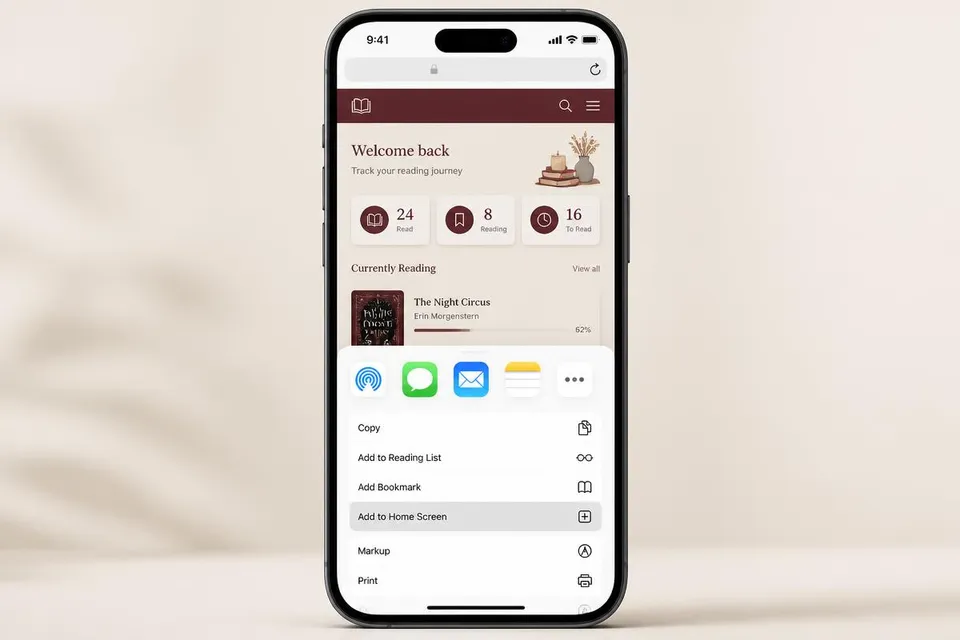
iPhone & iPad: Safari
- 1Open bookedbeautiful.com in Safari.
- 2Tap the Share button at the bottom of the screen — the square with an arrow pointing up.
- 3Scroll down and tap Add to Home Screen.
- 4Tap Add in the top-right corner. The icon now lives on your home screen.
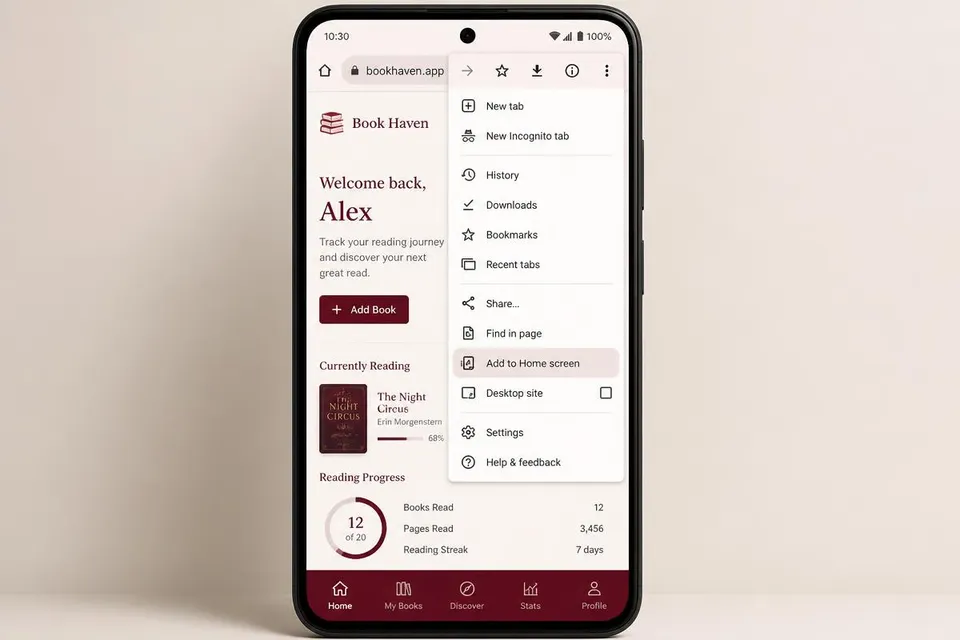
Android: Chrome
- 1Open bookedbeautiful.com in Chrome.
- 2Tap the three dots menu in the top-right corner.
- 3Select Add to Home screen or Install app.
- 4Tap Add or Install. The app icon appears on your home screen.
Chrome on iPhone
On iOS, Chrome uses Safari's underlying engine. Tap the three dots menu, choose Share, then scroll and tap Add to Home Screen.
What happens next?
Once installed, Booked & Beautiful opens without the browser address bar. Your session stays signed in, your shelves load instantly, and you can log books from your phone just like from a desktop.